
MySainsburys Payslip: How to View, Download & Understand Your Pay (2026 Guide)
If you work for Sainsbury’s and need to view your payslip, you’re in the right place. This complete guide walks you through everything from logging in for the first time, to downloading your payslip as a PDF, to understanding exactly what every figure on it means.
To view your MySainsburys payslip: go to oursainsburys.co.uk → log in with your Sainsbury’s email and password → click on MyHR → select Payslips → choose your pay period. That’s it. But if you’re having trouble logging in, can’t find your payslip, or just want to understand what your deductions mean — read on. We cover everything.
What Is the MySainsburys Payslip?
The payslip of salaries which you can access through oursainsburys.co.uk via official website. Here you will get all your details about monthly and yearly payouts.
Through this portal, you can:
- View and download your monthly or weekly payslips
- Access your P60 and P11D tax documents
- Update personal details
- Access HR and rota information via the MyHR section
Who can use this?
- Full-time and part-time store colleagues
- Distribution centre staff
- Head office employees
- Seasonal and temporary colleagues (while employed)
Note: Access ends when you leave Sainsbury’s. If you need old payslips after leaving, see Section 8 of this guide.
How to View & Download Your MySainsburys Payslip?
This is the most important section for most colleagues. Follow these steps exactly:
Viewing Your Payslip
- Log in at oursainsburys.co.uk
- From the dashboard, click ‘MyHR’
- In the MyHR menu, select ‘Pay Slip View’
- A list of available payslips will appear — each one is labelled by pay date
- Click on the relevant payslip to open it
Downloading Your Payslip as a PDF
- Open the payslip you want to download
- Look for the ‘Download’ or printer icon in the top-right corner of the payslip viewer
- Click it — your browser will download the payslip as a PDF file
- Save it to your device for your records
When Are Payslips Available?
Payslips are typically made available on the Thursday morning before your payday — usually from around 9am. Most monthly-paid colleagues are paid on the last Thursday of the month.
If your payslip is not showing on the expected date, check again later that day. It may just be delayed in the system.
How Many Months of Payslips Can I View?
Sainsbury’s keeps up to 12 months of payslips available on the portal. For anything older, you’ll need to contact HR directly (see Section 8).
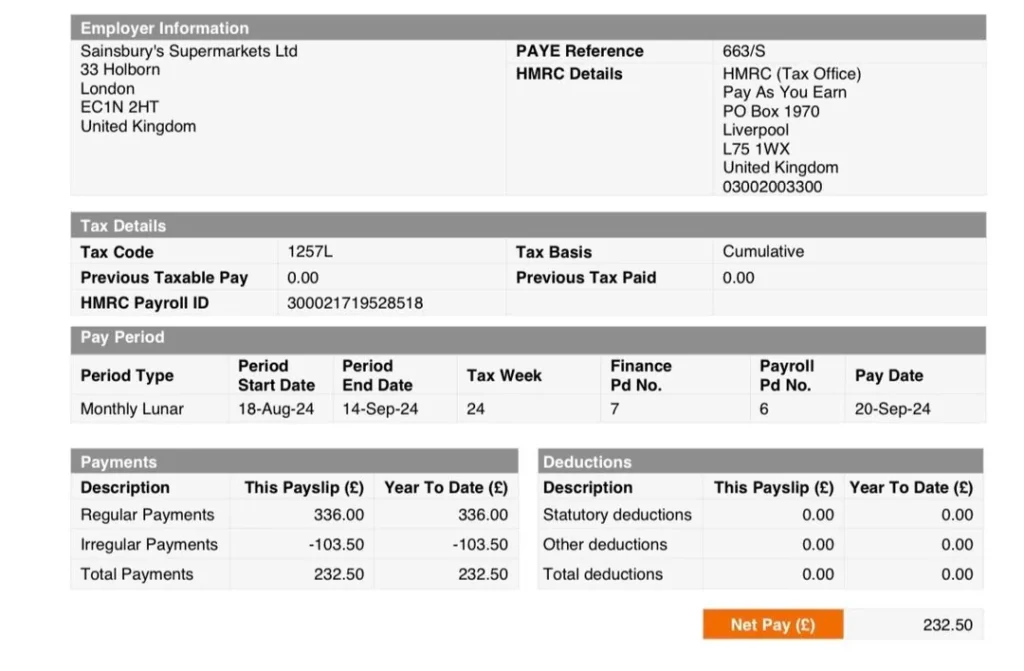
How to Read & Understand Your Sainsbury’s Payslip?
Most guides stop at telling you how to log in. But understanding what your payslip actually shows is just as important especially for tax purposes, mortgage applications, and spotting errors.
Key Sections of Your Payslip Explained
| Section | What It Means |
| Employee Number | Your unique Sainsbury’s staff ID number |
| Tax Code | Determines how much income tax you pay (e.g. 1257L is the standard code) |
| NI Number | Your National Insurance number — confirms contributions are being recorded |
| Gross Pay | Your total pay before any deductions |
| Basic Pay | Your contracted hours x your hourly rate |
| Overtime | Additional hours worked above your contracted hours |
| Holiday Pay | Pay received for holiday entitlement used |
| Income Tax (PAYE) | Tax deducted by Sainsbury’s on HMRC’s behalf |
| National Insurance | Your NI contributions (usually 8-12% of earnings above threshold) |
| Pension Deduction | Auto-enrolment pension contribution (usually 3-5% of qualifying earnings) |
| Net Pay | The amount actually paid into your bank account after all deductions |
Is Your Tax Code Correct?
Your tax code is shown near the top of your payslip. The standard tax code for most UK employees in 2025/26 is 1257L — this means you can earn £12,570 before paying income tax.
You may be on the wrong tax code if:
- Your code shows ‘W1’, ‘M1’, or ‘X’ — these are emergency tax codes
- You’ve recently started a new job and haven’t handed in a P45
- You have multiple jobs
- You receive taxable benefits
If your tax code looks wrong, contact HMRC directly on 0300 200 3300 or update your details via the HMRC personal tax account at gov.uk/personal-tax-account. Sainsbury’s Payroll cannot change your tax code — only HMRC can.
Understanding Your Pension Deduction
It automatically enrols eligible colleagues into its pension scheme. Your payslip will show both your own contribution and its employer contribution. If you’re unsure what your pension deductions should be, log in at mysainsburyspension.co.uk to check your pension summary.
MySainsburys Payslip Problems & How to Fix Them
My Payslip Shows the Wrong Pay Amount
If the pay on your payslip doesn’t match what you expected — don’t panic. First, check:
- Have your hours been recorded correctly for the pay period?
- Did you have any deductions for absence or unpaid leave?
- Was there a Bank Holiday in the pay period that may have affected calculations?
If you still believe there is an error, speak to your line manager first. They can raise a query with the Payroll team on your behalf. Alternatively, contact the Colleague Support Centre on 0800 707 6242.
My Payslip Is Missing a Month
If a payslip is missing entirely, it could be because:
- You were on unpaid leave for the full pay period
- You were a new starter and your payroll was processed late
- A technical issue on the portal
Contact Payroll via the Colleague Support Centre (0800 707 6242) and they can resend or reissue your payslip.
Payslip Shows Wrong Hours
If your contracted or overtime hours are incorrect, report this to your line manager immediately. Corrections to pay must be raised within the same or following pay period. Delays can make it harder to process corrections.
Account Locked or Disabled
If you cannot log in because your account has been locked or disabled:
- Try the password reset option on the login page first
- If that doesn’t work, contact the Sainsbury’s IT Service Desk on 0345 603 2638
- They can unlock your account or reset your credentialsLogin Troubleshooting — Full Guide
P60 & P11D — Other Pay Documents on MySainsburys
Your payslip isn’t the only important document available on the portal. Here’s what else you should know about:
What Is a P60?
A P60 is an annual summary of your total pay and all deductions for the tax year (6 April to 5 April). Sainsbury’s must provide your P60 by 31 May each year.
You can find it on the OurSainsburys portal under MyHR → Pay Documents → P60. You’ll need your P60 if you’re:
- Applying for a mortgage or rental property
- Completing a self-assessment tax return
- Claiming tax credits or Universal Credit
- Applying for a visa or proof of income
What Is a P11D?
A P11D reports any benefits in kind you receive from Sainsbury’s — for example, a company car, private healthcare, or other non-cash benefits. Not all colleagues will receive a P11D, only those with qualifying benefits. It is also available in the MyHR Pay Documents section.
Can I Access My Payslips After Leaving Sainsbury’s?
This is one of the most common questions — and most guides give an incomplete answer. Here is the full picture: Your access to the OurSainsburys portal is removed shortly after your employment ends. However, this does not mean your payslips are gone forever. Here’s what you can do:
Request Old Payslips from Sainsbury’s HR
You can request copies of past payslips by contacting the Colleague Support Centre. They can provide payslip copies for up to 6 years after leaving, in line with HMRC record-keeping requirements.
- Phone: 0800 707 6242
- Have your employee number, National Insurance number, and dates of employment ready
P45 After Leaving
Your P45 should be automatically issued to you when you leave. Check that your last known address is up to date before leaving, as it may be posted. You can also request a copy from the Colleague Support Centre.
Download Your Payslips Before You Leave
If you know your leaving date is coming up, the best thing to do is download as many payslips as you may need (especially the last 3-6 months) and save them somewhere safe before your account is closed.
MySainsburys Payslip for Specific Situations
New Starter — Your First Payslip
If this is your first payslip from Sainsbury’s, a few things to be aware of:
- You may be on an emergency tax code (W1 or M1) if Sainsbury’s hasn’t received your P45 from a previous employer
- Emergency tax means you’ll pay more tax initially — but it will be corrected once your correct tax code is applied
- Your first payslip may cover less than a full month if your start date was mid-period
- Hand in your P45 to HR as soon as possible to avoid overpaying tax
Part-Time & Variable Hours Colleagues
If your hours vary week to week, your gross pay will change each month. Always check the hours listed on your payslip against your own records. Report any discrepancies to your manager immediately.
Maternity & Paternity Pay on Your Payslip
During maternity or paternity leave, your payslip will show Statutory Maternity Pay (SMP) or Statutory Paternity Pay (SPP). Sainsbury’s may top up SMP — this will appear as a separate line on your payslip. Your pension contributions will continue during paid maternity leave.
Summary
Managing your Sainsbury’s pay is straightforward once you know where to look. Simply log in at oursainsburys.co.uk using your Sainsbury’s email and password, navigate to MyHR, and your payslips are right there — ready to view or download as a PDF.
If you run into trouble, the IT Service Desk (0345 603 2638) and Colleague Support Centre (0800 707 6242) are there to help.
One important tip — if you’re leaving Sainsbury’s, download your payslips before your last day. Once your account closes, getting them back takes extra effort.
Frequently Asked Questions